Comparing prefilled and submitted responses
Once a participant completes a prefilled questionnaire, you can compare the prefilled answers to their submitted answers. For more information about prefilled questionnaires, go to Creating prefilled questionnaires. This topic explains how to preview and export a questionnaire to compare prefilled and submitted responses.
-
Select a prefilled questionnaire from the Questionnaire Manager, and then select "Submission Manager". You'll be taken to the Submission Manager.
-
To preview questions and responses, select a participant's name, then select Preview from the Options menu on the right side of the page.
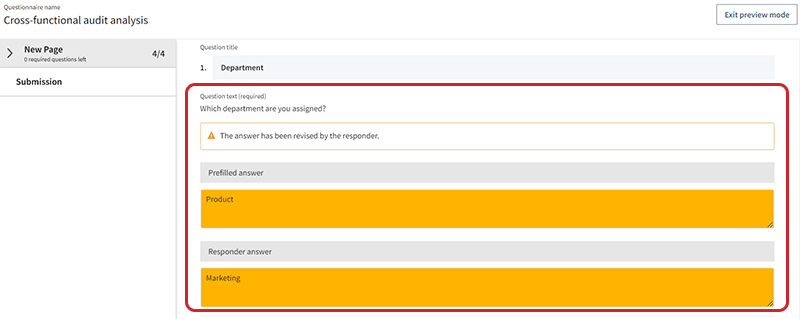
If the respondent revised a prefilled answer, a warning message appears under the question. You can view the prefilled answer in the Prefilled answer field, and the actual response from the participant is visible in the Responder answer field.
-
Compare the prefilled answer to the actual response using the highlights around both fields.
-
Select Exit preview mode to return to the Submission Manager.
-
To export the data, select Export on top of the screen. A dialog appears.
-
Select the checkbox next to one or more participants' names.
-
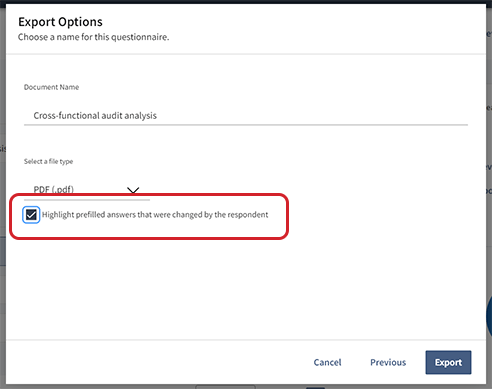
On the next screen, you can select export options, such as the document name and file type. To include highlights in the exported document, select the checkbox next to Highlight prefilled answers that were changed by the respondent.
-
Select Export. The exported file will be available in your browser window or in your designated downloads folder, depending on your settings.