Sending a notification
You can send a notification to remind participants that a questionnaire is open and it requires their attention. Notifications may be sent via email or Diligent Messenger, depending on site and user settings. This topic describes how to send a notification while a questionnaire is in-progress.
-
From the Questionnaire dashboard or Questionnaire manager, select the Options icon
 on a questionnaire's row, and then select "Send notification" from the dropdown menu.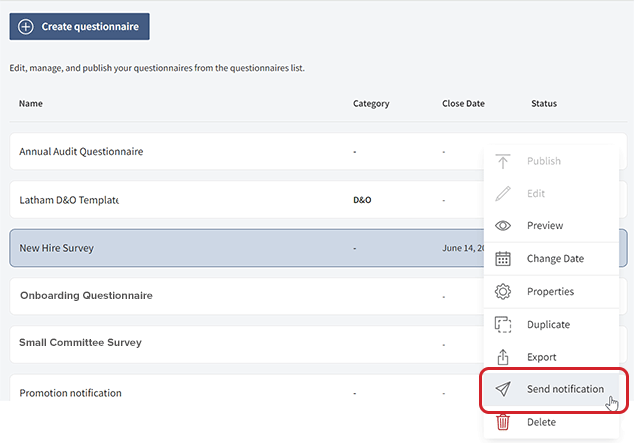
-
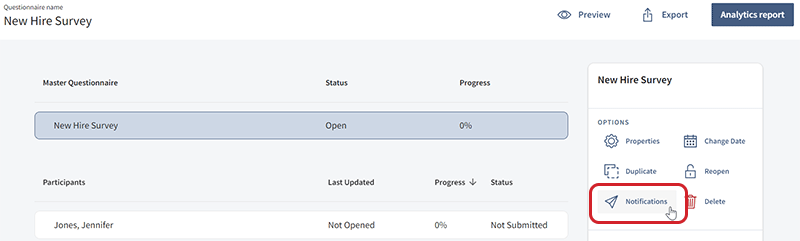
Alternatively, you can navigate to the Submission manager, and then select Notifications from the Options menu. The Send notification panel appears.
-
The list of participants will be pre-populated with the names of all users who have not completed the questionnaire. To filter the list by status, select one or more of the following options:
-
In progress
-
Unfilled
-
Unopened
-
-
Select the checkbox next to one or more participants' names to send them a notification.
Note
If you are sending a notification for an Anonymous questionnaire, you cannot filter the list of recipients or select which recipients receive the notification. Every participant will be sent a notification, regardless of their status, because Diligent does not identify participants in an Anonymous questionnaire.
-
On the next panel, you'll be prompted to select a notification type. Select from the following notification types:
-
Send email notification
-
Send Messenger notification (if Diligent Messenger is enabled for your site)
-
-
The recipients list will be pre-populated with the names of the users you selected in step 4. Confirm the recipients, and then select Next.
-
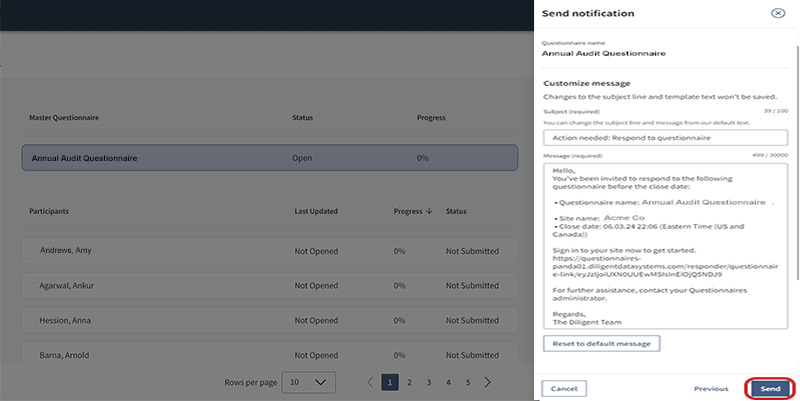
A preview of the notification subject and message appears on the next panel. A link to access the questionnaire is also included in the message. Select either field to edit the text.
-
To revert the text in the Message field to the original content, including the questionnaire link, select Reset to default message.
-
Select Send. The notification is automatically sent to recipients.