Creating signed evaluations and questionnaires
Creating a signed evaluation requires all participants to digitally sign the last page of the evaluation before they can submit their responses.
-
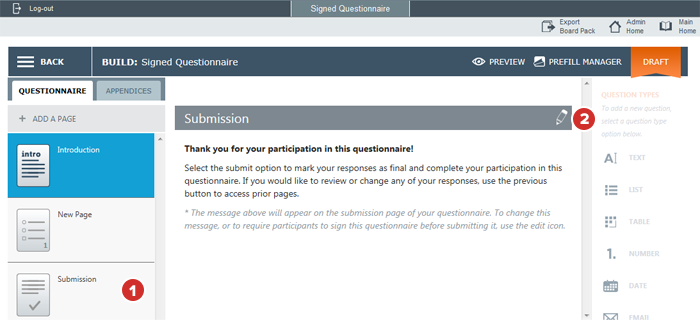
While editing your evaluation or questionnaire, select the Submission page.
-
Select the Edit button.
-
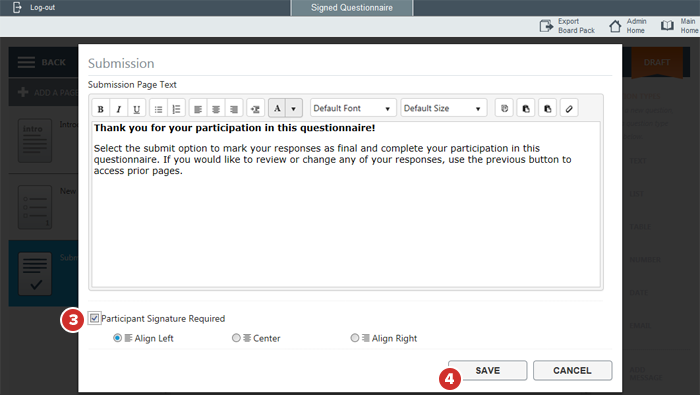
Check Participant Signature Required. This will require all participants to sign the questionnaire before submitting. Use the options below the checkbox to change how the signature line will be aligned for participants.
-
Select Save.
-
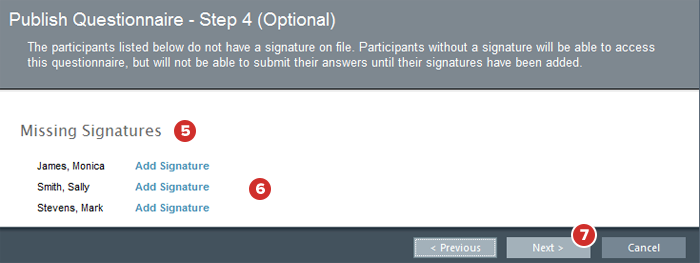
When you publish the questionnaire, a new step appears in the process if some participants don't have signatures on file. These users appear in the Missing Signatures list.
Note
Anyone who can respond to an evaluation can add or have a signature added to their account, even if they are not eligible to approve. If a director has a signature on file for approval, however, it will automatically be used for evaluations as well.
-
Select Add Signature to add a signature file to the participant's profile.
Note
Signature files uploaded by an administrator must be a JPG, TIF, or PNG image that is exactly 210 pixels wide and 45 pixels high. Contact your Account Manager if you require assistance creating or uploading a signature.
Note
Participants may add a signature to their account using Boards iOS on an iPad, or via the Windows Store App.
Note
You can publish a signed evaluation even if not every participant has a signature on file. Users without signatures on file will be able to answer questions, but will not be able to submit their answers until a signature is added to their account.
-
Select Next and publish the evaluation as normal.
-
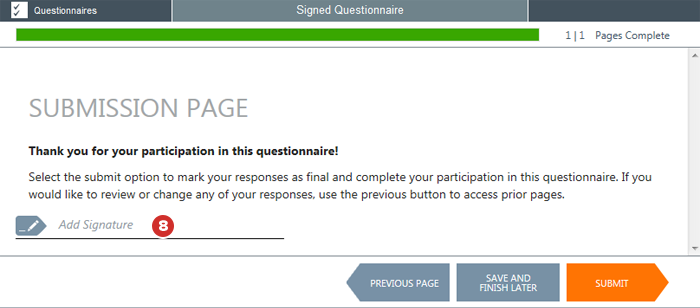
When a participant gets to the end of the evaluation, they will not be able to submit their answers until they select the Add Signature line to sign the evaluation.