
Adding users in bulk
Add large numbers of users to Diligent One Platform to avoid time-consuming manual data entry associated with individually adding users.
How it works
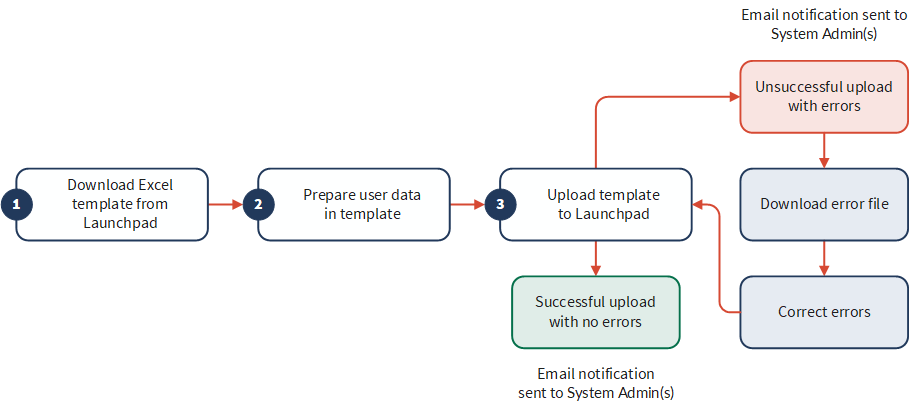
First, you download the Excel template from Diligent One Platform. Then, you prepare user data in the template. Finally, you upload the template to Diligent One Platform.
After bulk adding users, you receive an email notification that summarizes:
- the number of users added
- the number of users not added
If one or more users was not successfully added to Diligent One Platform, you can download an error file (accessible via link in the email), correct the errors, and re-upload the error file to Diligent One Platform. When all users are successfully added to Diligent One Platform, they can download and begin working in the Diligent products they have permission to access.
Workflow
Permissions
Only System Admins can bulk add users to Diligent One Platform and only one System Admin can bulk add users at a time.
Add multiple users simultaneously
Note
This procedure includes steps for both the new and old global navigations. Select the appropriate tab (New nav or Old nav) in this section based on your interface.
 Steps
Steps
-
On the Platform home page, from the top right, select the Organization settings icon (
 ).
). - Under User management, select Users.
- On the Manage users page, select Bulk add.
-
On the Bulk Add Users page, select Download .xlsx Template.
The Excel template is saved to your local machine as Bulk Add User Template.xlsx.
-
Open Bulk Add User Template.xlsx and enetr the details as described in the following table:
NoteOnly the Bulk Add User Template.xlsx worksheet can be used to enter user data. Additional worksheets will not be processed.
Field Description Email The email address of each user.
The character limit is 60. Email addresses can include apostrophes.
Note
Diligent One Platform does not support email addresses with accents or non-Latin characters.
If you need to change an existing user's email address, contact Support.
First Name The first name of the user to be added
The character limit is 40.
Last Name The last name of the user to be added
The character limit is 40.
Launchpad Role
optional
The user's Diligent One system-wide user type (Launchpad role)
There is no limit on how many users can be System Admins. For more information, see System-wide user types and group roles.
Subscription
optional
The user's subscription
Subscriptions define the role(s) a user can be assigned in each Diligent One app. For more information, see Managing licenses and subscription permissions.
Reports Role
optional
The user's Reports role
For more information on roles in Reports, see Reports app permissions.
NoteThe Diligent One Platform database is not synced with the Reports app. Users must open Reports at least one time before they can be assigned access to reports, dashboards, and storyboards.
- On the Bulk Add Users page, upload the template.
Note
Only one Excel template can be uploaded. If a System Admin uploads another Excel template, the previously uploaded Excel template is overwritten. The uploaded Excel template is visible to all System Admins.
Special characters and spaces in the file name are not supported and will be replaced by underscores.
- Select Add users.
System Admins receive an email that summarizes the number users added, and the number of users not added (if applicable). When the bulk add is complete, a summary message displays under Bulk Add Summary on the Bulk Add Users page. If necessary, you can remove the uploaded file by selecting the trash bin
 .
.
Steps
-
Open the Platform home page (www.diligentoneplatform.com).
Note
If your company uses more than one organization in Diligent One Platform, make sure the appropriate organization is active.
- Select Platform Settings > Users.
If you do not see Users as an option, the account you used to sign in does not have Admin privileges.
- On the Manage users page, select Bulk add.
-
On the Bulk Add Users page, select Download .xlsx Template.
The Excel template is saved to your local machine as Bulk Add User Template.xlsx.
-
Open Bulk Add User Template.xlsx and enetr the details as described in the following table:
NoteOnly the Bulk Add User Template.xlsx worksheet can be used to enter user data. Additional worksheets will not be processed.
Field Description Email The email address of each user.
The character limit is 60. Email addresses can include apostrophes.
Note
Diligent One Platform does not support email addresses with accents or non-Latin characters.
If you need to change an existing user's email address, contact Support.
First Name The first name of the user to be added
The character limit is 40.
Last Name The last name of the user to be added
The character limit is 40.
Launchpad Role
optional
The user's Diligent One system-wide user type (Launchpad role)
There is no limit on how many users can be System Admins. For more information, see System-wide user types and group roles.
Subscription
optional
The user's subscription
Subscriptions define the role(s) a user can be assigned in each Diligent One app. For more information, see Managing licenses and subscription permissions.
Reports Role
optional
The user's Reports role
For more information on roles in Reports, see Reports app permissions.
NoteThe Diligent One Platform database is not synced with the Reports app. Users must open Reports at least one time before they can be assigned access to reports, dashboards, and storyboards.
- On the Bulk Add Users page, upload the template.
Note
Only one Excel template can be uploaded. If a System Admin uploads another Excel template, the previously uploaded Excel template is overwritten. The uploaded Excel template is visible to all System Admins.
Special characters and spaces in the file name are not supported and will be replaced by underscores.
- Select Add users.
System Admins receive an email that summarizes the number users added, and the number of users not added (if applicable). When the bulk add is complete, a summary message displays under Bulk Add Summary on the Bulk Add Users page. If necessary, you can remove the uploaded file by selecting the trash bin
.
Handling errors in bulk uploads
If your bulk upload fails, an error file is generated with details. Download the file to review and fix the issues before trying again.
- If one or more users were not added, do one of the following:
- On the Bulk Add Users page, select Download Errors.
- In the notification email, select Login to Download Errors.
- Make corrections to the records in the error file.
- Upload the error file to the Bulk Add Users page.
Users that have been added are sent an invitation email.
Troubleshooting
Understand common bulk upload errors and causes and learn how to fix errors.
Error file
If there are errors in the Excel template, Diligent One Platform rejects the Excel template and generates an error file that contains:
- A list of user records that failed
- The reason why each record failed (identified in the Error field)
- The value in each field that caused the error to occur
Any System Admin can download the error file (if applicable), make corrections to the records in the file, and upload the file for processing. After a System Admin has made the appropriate updates to the error file, they can upload the error file to Diligent One Platform for processing.
Error file processing
When the error file is processed, only the following fields are considered:
- First & Last Name
- Launchpad Role
- Subscription
- Reports Role
The Error field that provides a statement describing why each record failed does not get processed. If any of the fields in a record are in error, no other fields in the record are processed. For example, if a System Admin enters a user name, but does not specify an appropriate email address, the user is not added.
If the optional fields in the Excel template (Launchpad Role, Subscription, and Reports Role) are left blank, the following default values are inserted:
- Launchpad Role User
- Subscription None
- Reports Role No Access
Errors
The table below provides a list of possible error messages that may occur when uploading the Excel template. If a record has multiple errors, the error messages are concatenated together and separated by a comma within the Error field.
| Error | Description | Solution |
|---|---|---|
|
Invalid Email |
when an email address does not have the appropriate format |
Ensure that each email address has the following parts, in order:
Example: john.smith@acl.com |
|
Name or Email is Missing |
when the user's first or last name is left unspecified or the email field is left blank |
Specify the user's first and last name and enter the user's email in the appropriate fields. |
|
Invalid Account Role |
when the role specified is NOT one of the following values:
|
Specify the role with one of the appropriate values. |
|
Invalid Subscription |
when the subscription specified is NOT one of the following values:
|
Specify the role with one of the appropriate values. |
|
Invalid Reports Role |
when the Reports role specified is NOT one of the following values:
|
Specify the role with one of the appropriate values. |
|
Assigned subscription does not allow selected Reports role |
when a user is assigned the Report Admin or Report Writer role but does not have a Professional subscription |
Ensure that each user assigned the Report Admin or Report Writer role has been assigned a Professional subscription.
|
|
User is a member of an organization that has SSO enabled |
when a user that belongs to an SSO-enabled instance is added to another instance |
Users belonging to multiple instances must either be removed from your instance or from additional instances. |
