
Managing review queues
A Policy Manager review queue is one or a group of users to assigned to handle the review, approval, or other actions. Every person in the review queue will receive a review notification but only one person takes ownership.
A user cannot be assigned to a task. A review queue with at least one user is assigned to a task and a member of the review queue must take ownership of a task to complete the task. The owner of the task may release ownership for another user in the queue to assume ownership.
You must set up a review queue before the queue can be added to a review task.
Puede asignar individuos a filas de revisión en función de su tarea, como revisores, aprobadores o alguna otra acción. Por ejemplo, puede tener diferentes individuos en filas como Revisión de RR. HH., Aprobador de RR. HH., Revisor de asuntos legales y Aprobador de asuntos legales. Así, puede asignar un documento a los individuos correctos en la fase adecuada del ciclo de revisión.
La exhaustividad de la revisión de la documentación depende de las capas o la cola de revisión añadidas al revisar un documento en particular.
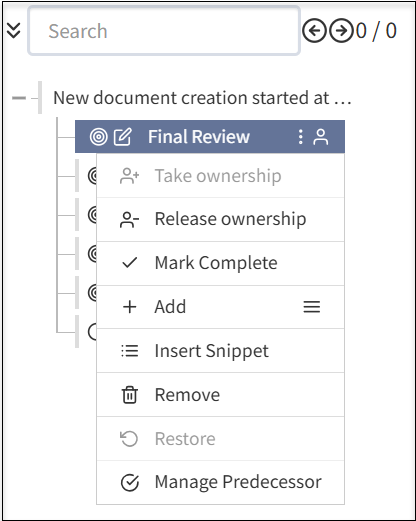
Cuando se crea una fila de revisión, puede hacer lo siguiente:
- Completar una revisión final asignando una persona o poseyendo grupos.
- Tomar posesión: asígneselo para editar la documentación.
- Titularidad de la liberación: libérese de editar la documentación.
- Marcar como completo: marque la revisión del documento como completa.
- Agregar: seleccione el icono de menú para agregar subsecciones adicionales al documento. Los pasos adicionales incluyen los siguientes campos:
- Agregar sección: agregue una nueva sección a su documento para completar la revisión del documento.
- Agregar paso: agregue nuevos pasos a la sección existente en el documento.
- Agregar edición: agregue un componente de edición adicional a su documento.
- Agregar aprobaciones: agregue un nivel de aprobación adicional antes de completar el ciclo de revisión de documentos.
- Agregar revisión: agregue una capa adicional para revisar el documento antes de marcarlo como Completo.
- Añadir cierre : agregue una capa adicional para cerrar antes de marcar el documento como completo.
- Añadir fragmento: añade fragmentos para su documentación.
- Quitar: elimina las capas que agregó para su documentación según su requisito.
- Restaurar: restaura la versión anterior del documento, si ha eliminado accidentalmente una sección o capa mientras realiza la revisión del documento.
- Gestionar el predecesor: puede asignar la tarea predecesora antes de completar un ciclo de revisión de documentos.
Se recomienda asignar una fila de personas para la propiedad de documentos y otra para la propiedad de tareas para definir con claridad revisores, aprobadores y propietarios de documentos.
Add a review queue
From the left navigation menu, select Administration, > Review Queues.
Select the Review Queues
 button.
Complete the information for the queue
Enter a Name for the queue and add a Description.
Select the Type to identify document ownership and task assignment functions for the queue. For example, Compliance may own a document but various review queues, including a compliance review queue, may accept tasks for review.
For Document Ownership Only: Individuals can own a document but will not be involved in reviewing tasks in a review cycle. Use this selection to assign ownership to a stakeholder or group that isn't an active user of Policy Manager. For example, this may be a Board or Committee of the Board that is the owner and primary stakeholder of a document but will never use Policy Manager and, instead, will have another group of users be responsible for document life cycle management.
For Task Assignment Only: Individuals will only be assigned tasks and can take ownership of a task. Individuals in the queue do not own the document.
Available for Both: The queue owns the document and can be involved in task actions.
- Select Active for the queue to be made available immediately. If a queue is active, it cannot be deactivated if it is used in one or more flows.
Select a Flow Definition (a Review Flow). For more information, see Managing review flows and tasks.
Select the Save Case Queue button.
Add or remove uses from the queue, as needed:
To add users to the queue, search for the user in All Other Users. Select the Action
 button for the user. The user moves to Current Users.
- To remove users to the queue, search for the user in Current Users. Select the Action button for the user. The user moves to All Other Users.
Manage a review queue
From the left navigation menu, select Administration > Review Queues.
Select any of the following:
 Edit to update the information.
 To add users to the queue, search for the user in All Other Users. Select the Action
button for the user. The user moves to Current Users.- To remove users to the queue, search for the user in Current Users. Select the Action button for the user. The user moves to All Other Users.
If Active is selected, the review queue is available for task assignment. You can deselect Active. The system will not allow you to inactivate a review queue that is currently in active use.
 Clone the review queue. You can edit the cloned review queue to make a new review queue.
 Delete to remove the review queue. The system will not allow you to inactivate a review queue that is currently in active use.
