
Managing review queues
A Policy Manager review queue is one or a group of users to assigned to handle the review, approval, or other actions. Every person in the review queue will receive a review notification but only one person takes ownership.
A user cannot be assigned to a task. A review queue with at least one user is assigned to a task and a member of the review queue must take ownership of a task to complete the task. The owner of the task may release ownership for another user in the queue to assume ownership.
You must set up a review queue before the queue can be added to a review task.
Affectez des personnes à des files d’attente d’examen en fonction de leur tâche, comme les réviseurs, les approbateurs ou d’autres. Par exemple, vous pouvez avoir différentes personnes dans des files d’attente comme Examen RH, Approbation RH, Examen juridique et Approbation juridique. De cette manière, vous pouvez assigner un document aux bonnes personnes à la phase appropriée du cycle d’examen.
L’exhaustivité de la révision de la documentation dépend des couches ou de la file d’attente de révision ajoutées lors de la révision d’un document particulier.
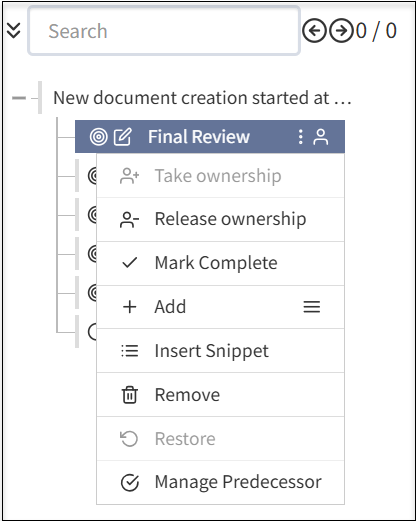
Lorsqu’une file d’attente d’examen est créée, vous pouvez effectuer les actions suivantes :
- Terminez une révision finale en désignant une personne ou des groupes responsables.
- Propriété de la tâche : attribuez ce droit à vous-même pour modifier la documentation.
- Libérer la propriété : libérez-vous de l’édition de la documentation.
- Marquer comme terminé : marquez la révision du document comme terminée.
- Ajouter : sélectionnez l’icône du menu pour ajouter des sous-sections supplémentaires au document. Les étapes supplémentaires comprennent les champs suivants :
- Ajouter une section : ajoutez une nouvelle section à votre document pour terminer la révision du document.
- Ajouter une étape : ajoutez de nouvelles étapes à la section existante du document.
- Ajouter Modifier : ajoutez un composant d’édition supplémentaire à votre document.
- Ajouter Approuver : ajoutez un niveau d’approbation supplémentaire avant de terminer le cycle de révision du document.
- Ajouter Réviser : ajoutez un niveau de révision supplémentaire le document avant de le marquer comme terminé.
- Ajouter Fermer : ajoutez un niveau de fermeture supplémentaire avant de marquer le document comme terminé.
- Insérer un snippet : ajoute des snippets à votre documentation.
- Supprimer : supprime les couches que vous avez ajoutées à votre documentation selon vos besoins.
- Restaurer : restaure la version précédente du document, si vous avez accidentellement supprimé une section ou une couche lors de la révision du document.
- Gérer le prédécesseur : vous pouvez attribuer une tâche prédécesseur avant de terminer un cycle de révision de document.
Il est recommandé d’assigner une file d’attente pour la propriété du document et une autre pour la propriété de la tâche afin de définir clairement les réviseurs, les approbateurs et les propriétaires de document.
Add a review queue
From the left navigation menu, select Administration, > Review Queues.
Select the Review Queues
 button.
Complete the information for the queue
Enter a Name for the queue and add a Description.
Select the Type to identify document ownership and task assignment functions for the queue. For example, Compliance may own a document but various review queues, including a compliance review queue, may accept tasks for review.
For Document Ownership Only: Individuals can own a document but will not be involved in reviewing tasks in a review cycle. Use this selection to assign ownership to a stakeholder or group that isn't an active user of Policy Manager. For example, this may be a Board or Committee of the Board that is the owner and primary stakeholder of a document but will never use Policy Manager and, instead, will have another group of users be responsible for document life cycle management.
For Task Assignment Only: Individuals will only be assigned tasks and can take ownership of a task. Individuals in the queue do not own the document.
Available for Both: The queue owns the document and can be involved in task actions.
- Select Active for the queue to be made available immediately. If a queue is active, it cannot be deactivated if it is used in one or more flows.
Select a Flow Definition (a Review Flow). For more information, see Managing review flows and tasks.
Select the Save Case Queue button.
Add or remove uses from the queue, as needed:
To add users to the queue, search for the user in All Other Users. Select the Action
 button for the user. The user moves to Current Users.
- To remove users to the queue, search for the user in Current Users. Select the Action button for the user. The user moves to All Other Users.
Manage a review queue
From the left navigation menu, select Administration > Review Queues.
Select any of the following:
 Edit to update the information.
 To add users to the queue, search for the user in All Other Users. Select the Action
button for the user. The user moves to Current Users.- To remove users to the queue, search for the user in Current Users. Select the Action button for the user. The user moves to All Other Users.
If Active is selected, the review queue is available for task assignment. You can deselect Active. The system will not allow you to inactivate a review queue that is currently in active use.
 Clone the review queue. You can edit the cloned review queue to make a new review queue.
 Delete to remove the review queue. The system will not allow you to inactivate a review queue that is currently in active use.
