
树状图表
树状图将分层的树结构数据显示为一组嵌套矩形。每个组都被给予一个矩形,这些矩形随后被更小的表示子组的矩形所覆盖。尺寸和颜色被用来显示数据的不同数值维度。
何时使用它?
在处理大量具有分层结构的数据时,请使用树状图。当颜色和尺寸被相互关联时,树状图可以帮助识别难以发现的模式。
在清晰地在单个屏幕中显示大量信息方面,树状图也很有效。这样,查看者可以深入到特定类别中以考察进一步的信息。
说明
此时,树状图支持多达两个级别的分组。
示例
汽车制造商和型号
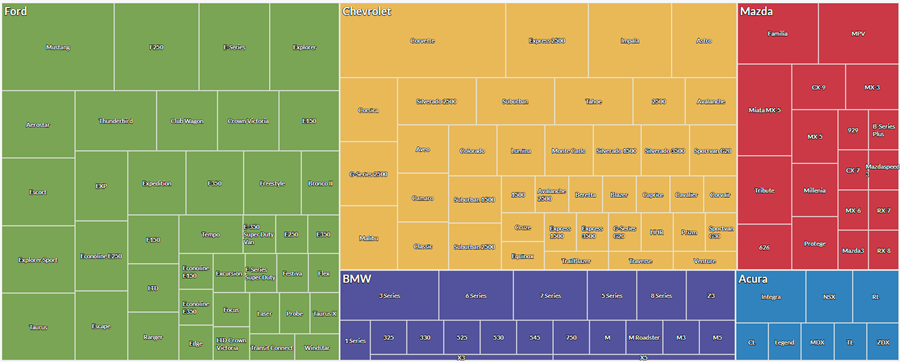
您有一个表,其中包含汽车库存。您想要直观地显示每家制造商的汽车型号数量,以获取库存概览。
为了直观地显示此数据,您使用树状图以:
- 首先按制造商,然后按型号对数据进行分组
- 将尺寸调整依据设置为车辆数
基于结果,您可以查看库存在制造商和型号之间的分布情况:
按州和城市统计的交易合计额
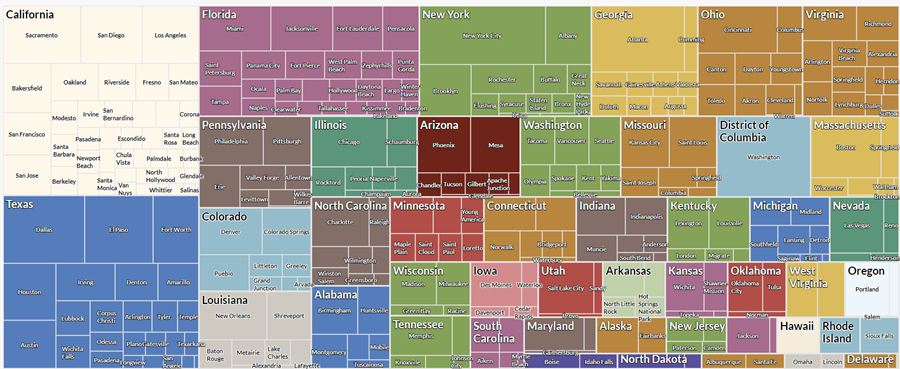
您有一个表,其中包含美国多个州和城市的交易。作为您的分析的一部分,您想要按照州和每个州内的城市直观地显示合计交易金额。
为了直观地显示此数据,您使用树状图以:
- 您首先按州,然后按城市对数据进行分组。
- 将尺寸调整依据设置为交易之和
基于结果,您可以查看下列组内的聚合交易金额开始呈现的模式:
按州和城市统计的交易数和合计金额
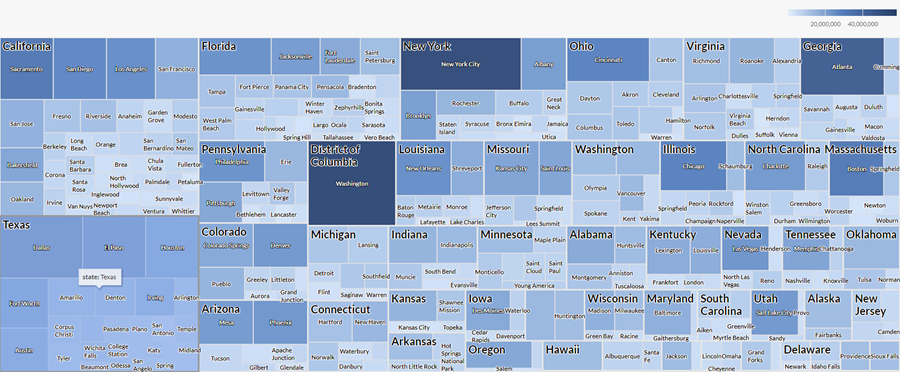
您有一个表,其中包含美国多个州和城市的交易。作为您的分析的一部分,您想要按照州和每个州内的城市直观地显示交易数和合计交易金额。
为了直观地显示此数据,您使用树状图。您首先按州,然后按城市对数据进行分组。您还使用下列附加设置:
- 尺寸调整依据计数
- 着色依据交易总和
基于结果,您可以确定交易在不同城市和州组合之间的分布情况,并且查看下列组内的聚合交易金额开始呈现的模式:
数据配置设置
在 平台主页 页面 (www.diligentoneplatform.com) 中,选择 结果 应用程序以将其打开。
如果您已经进入 Diligent One,可以使用左侧导航菜单切换到结果应用程序。
- Navigate to the appropriate table.
- On theConfigure
 panel, clickDataand configure the following settings:
| 设置 | 支持的数据类型 | 描述 |
|---|---|---|
| 组 |
| 要用作类别的域。您选择的第二个组被嵌套在第一个组中。组被显示为矩形。 您最多可以选择两个组。 |
| 尺寸调整依据 | 数值 | 用来确定每个组的大小的聚合值。您可以为表中的数字列选择记录计数或几个聚合值之一:
提示 您可以通过更改此域的格式来控制数值类型数据的小数位数和取整方式。 对于平均聚合选项,“格式”选项位于配置可视化效果面板的“数据”选项卡中。对于所有其他聚合选项,则应用在表视图中设置的格式选项。有关执行此操作的帮助,请参阅数据格式化选项。 |
着色依据 可选 | 数值 | 用来确定每个组的颜色、强度或刻度尺的聚合值。您可以为表中的数字列选择记录计数或几个聚合值之一:
提示 您可以通过更改此域的格式来控制数值类型数据的小数位数和取整方式。 对于平均聚合选项,“格式”选项位于配置可视化效果面板的“数据”选项卡中。对于所有其他聚合选项,则应用在表视图中设置的格式选项。有关执行此操作的帮助,请参阅数据格式化选项。 |
格式选项 | 数值 | 在此域中选择一个选项以将小数位数和取整方式等格式应用于图表中的 Y 轴值。有关执行此操作的帮助,请参阅数据格式化选项。 只有对于平均聚合选项,格式选项才是可用的。对于所有其他聚合选项,则应用在表视图中设置的格式选项。 |
图表显示设置
在 平台主页 页面 (www.diligentoneplatform.com) 中,选择 结果 应用程序以将其打开。
如果您已经进入 Diligent One,可以使用左侧导航菜单切换到结果应用程序。
- Navigate to the appropriate table.
- On theConfigurepanel, clickDisplayand configure the following settings:
| 设置 | 描述 |
|---|---|
| 选项 | |
| 显示图例 | 在图表顶部显示或隐藏图例。 |
| 提高性能 | 当图表上的数据点超过 150 个时,通过应用一些折衷来切换到性能模式。要了解更多信息,请参考图表性能提升。 |
| 分组标签 | |
| 显示第一个组 | 包括第一个组内的值的标签。 |
| 显示第二个组 | 包括第二个组内的值的标签。 |
| 其他设置 | |
| 颜色 | 被分配给以下对象的颜色:
|
