About Data Room
Securely store, edit, manage, and collaborate on your documents and projects using Diligent Data Room. Define view and modify permissions at user and document level and track every interaction with your documents using our audit trail. Our integration with Microsoft Office 365 facilitates real-time collaboration online.
Contact your Organizational Administrator with any queries on your room settings.
Dashboard layout
-
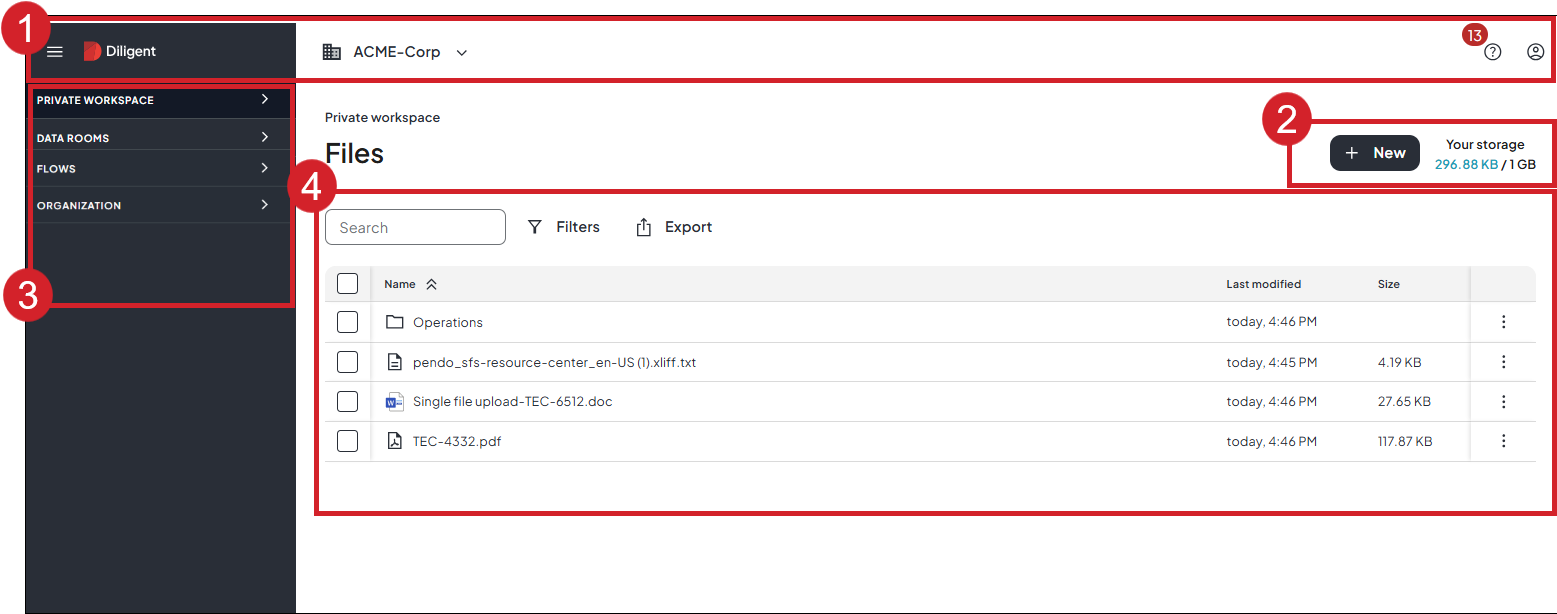
Header panel Displays your company name, the name of the organization, access to other organizations you are a member of, the Diligent Data Room Resource Center where you can view notifications, access Help documentation, and give feedback, in addition to accessing your profile and account settings.
-
New Upload and create files and folders. Administrators can access reports from here. This is also where you will see your how much storage is available and how much has been used.
-
Navigation menu
-
Private Workspace: Your secure space to view and manage your files and folders as well as any that have been shared with you.
-
Data Rooms: Dedicated team spaces to securely share files and collaborate on projects.
-
Flows: Connect your Data Room account to your Boards account for secure meeting and project management.
-
Organization: Your portal to administration features. Available only to Organization Administrators.
-
-
Files View folders and files relating to your selection in the navigation menu.
Interaction options
There are several ways to interact in your data room:
-
Use your mouse and right-click to select an option or feature.
-
Select an option or feature using the touch screen.
-
Navigate to an option or feature using hotkeys.
Hotkeys
|
Mac Hotkeys |
PC Hotkeys |
Description |
|---|---|---|
|
Command + up or down arrow |
Ctrl + Alt + up or down arrow |
Highlight an item without selecting it |
|
Up and down arrows |
Up and down arrows |
Select a single item |
|
Toggle selection with the space bar |
Toggle selection with the space bar |
Select and deselect an item |
|
|
Select multiple items grouped together |
|
Command + A |
Ctrl + A |
Select all items |
|
Enter |
Enter |
Opens the selected item |
|
Esc |
Esc |
Clear selection |
|
Back space |
Back space |
Navigate back through file path |
