Request documents and reports
An Administrator can request the documents required for a board meeting. After a document is delivered it's stored in the Team Data room assigned to the Flow installation and included in the meeting board book.
Note
The people responsible for document delivery (contributor) and compliance (reviewer or approver) all need a Diligent Data Room (DDR) account.
How to request a document
First make sure you have added an agenda item as described in Add an Agenda item.
-
In the navigation bar of your Data room select Flows.
-
Go to the meeting Flow you want to work on.
-
Select the Agenda tab and select Add delivery in the Agenda item.
-
In the Request delivery pane enter the name or email address of the person who will deliver the document. This person must be a member of the DDR organization.
Optional: You can also add a person who must review the document and another person who approves it. These people must be members of the DDR organization.
-
Set a due date for document delivery.
-
Select Next. If desired, write a personal message to the people who will deliver and review the document.
-
Now you can do one of the following:
-
Select Request delivery to request the document immediately.
-
Select Save and Close to save the details and request delivery later. This can be done by going to the Agenda tab and selecting Request Delivery on the agenda item.
-
Select Back to change the people who are responsible for document delivery, review or approval or to change the due date.
-
What if a contributor cannot deliver a document themselves?
You can manage a document's delivery from the Agenda tab.
-
Select the meeting Flow > Agenda tab.
-
Go to the agenda item and select Waiting for delivery. If the delivery is already overdue, you will see Delivery Overdue instead.
You can also select the more options icon
 and select Manage delivery from the menu.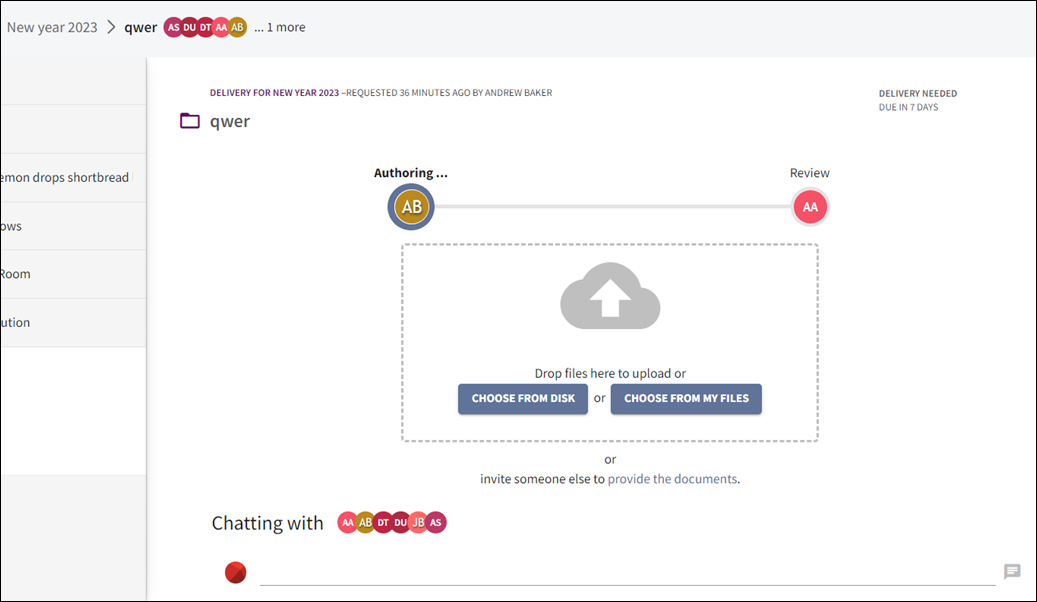
-
You can now either upload the documents yourself, or invite someone else by selecting provide the documents to open a new request window.
An email notification will be sent to the new contributor.
-
You can enter a message under Chatting with to notify all other members of the Flow.
Note
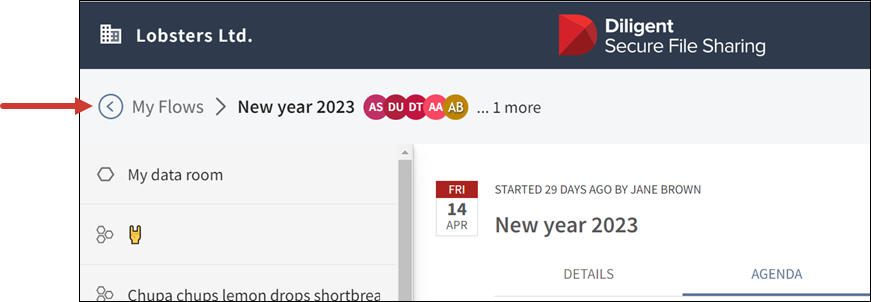
To go back to the agenda, use the breadcrumb navigation on the top left of the screen. To exit to the Flows pane, select My Flows.
Request and reminder process
After an Administrator requests the delivery of a document in the agenda item of a meeting Flow, Secure Meeting Workflow automates the reminder process.
This is the reminder process the system follows.
-
Secure Meeting Workflow notifies the document contributor via email and provides a link to the delivery Flow.
-
If documents remain undelivered a few days before the due date, then Secure Meeting Workflow sends a reminder email to the contributor.
-
If the document is still not delivered by the due date, then Secure Meeting Workflow sends another reminder to the contributor.
-
Once the document is delivered, the Administrator and the reviewer are notified automatically via email. The approver must be notified manually by the Administrator. Similar to the contributor, the reviewer or approver will get an email reminder if they have not reviewed or approved the document by the due date.
